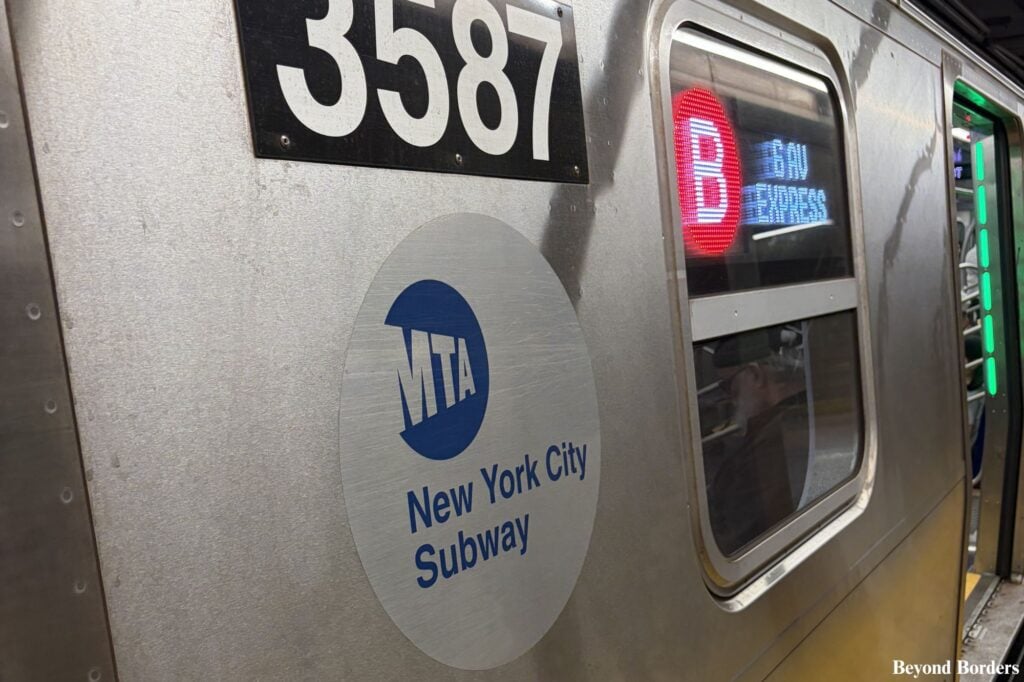
You don’t need dozens of transit apps to navigate New York City; you only need to pair these two best apps for NYC subway navigation to have a stress-free trip:
- Google Maps (The Planner): Best for door-to-door directions, choosing the right train lines, and pinpointing correct street-level station entrances.
- Transit App (The Tracker): Best for real-time countdown clocks, crowdsourced service updates, and reliable offline maps when you are underground.
Introduction
While I have written about how to use the NYC subway system like a local and about essential subway safety tips for visitors, there are tons of apps to use, and it can be hard to figure out which is the best app to navigate the NYC subway. If you ask ten different New Yorkers what the best NYC subway app is for visitors, you’ll probably get ten different answers.
For a long time, I was firmly in the Google Maps camp as the main app for the New York subway-it’s the app I open first, and it’s arguably the most reliable option for mapping out a trip from point A to point B. But after navigating the city’s complex, fast-moving transit system time and time again, I realized that relying on just one app is a major tourist trap. To travel like a local, you actually need a two-app strategy.
While Google Maps remains my go-to blueprint for high-level trip planning and street-level walking directions, pairing it with the Transit App gives you hyper-accurate, real-time countdowns and offline maps the second you step underground. Here is exactly how to use this perfect duo together to master the NYC subway with zero stress.
Remember: The MTA has discontinued physical MetroCard sales and has fully transitioned to a contactless payment system, so visitors absolutely need to know how the new system works. You can simply tap your smartphone’s digital wallet or a contactless credit/debit card directly at the turnstile to pay your fare. To learn more about current fare caps and free transfer rules before you start riding, be sure to visit the official OMNY website.
Jump to my Quick-Reference FAQs ↓ at the bottom of this guide if you have a specific question!
How to Avoid the Biggest NYC Transit App Mistakes
When you’re trying to figure out how to navigate the NYC subway, the most common mistake is assuming a single app can handle everything. Relying solely on one platform usually leads to two major travel headaches. First, if you only use a standard mapping tool, you run the risk of getting completely stuck the moment you step onto a platform and lose cell service–leaving you without access to live route changes or basic station maps.
Second, a single app can fail to account for sudden, real-time MTA service disruptions, causing you to wait for a train that isn’t coming or miss the correct street-level exit entirely. To avoid these delays and travel like a local, you have to stop looking for just one “magic” download and instead learn how to combine the strengths of the city’s two best tools.
How to Use Google Maps When Riding the NYC Subway: Your Macro-Planning Tool
Google Maps provides the foundation of your journey before you ever step foot on a train!
Step 1: How to Map Your Route and Choose the Best Line
This is where Google Maps shines. Before you leave your hotel, restaurant, or attraction you’ve just visited, type in your destination and select the transit (train) icon. Google will give you the big picture: which lines to take, how many stops are in between, and total travel time.
Pro Tips:
- Always look at the total travel time options. Google will show you if walking two blocks to a different line will save you a 15-minute transfer.
- Airport Arrivals: Navigating the subway with luggage requires a clear game plan. Once you’ve downloaded Google Maps and Transit, read my full walkthrough on how to get from JFK and LGA to Manhattan at the start of your trip and how to get from Manhattan to JFK and LGA when you are ready to head home, using either the subway/LIRR/AirTrain, Uber/Taxi, or airport buses.
Step 2: How to Use the “Where to Board” Feature
When Google Maps gives you subway directions, it often includes a small icon of subway cars and a line that says something like “Board near the front/middle/back of the train.”
The Value: NYC subway stations can be massive, and being at the wrong end of a train can mean a long, crowded walk on the platform to exit. Google tells you exactly where to stand on the platform so that when you arrive at your destination, you are right next to the exit stairs!
Step 3: How to Find the Exact Street-Level Station Entrances and Exits
The Outline
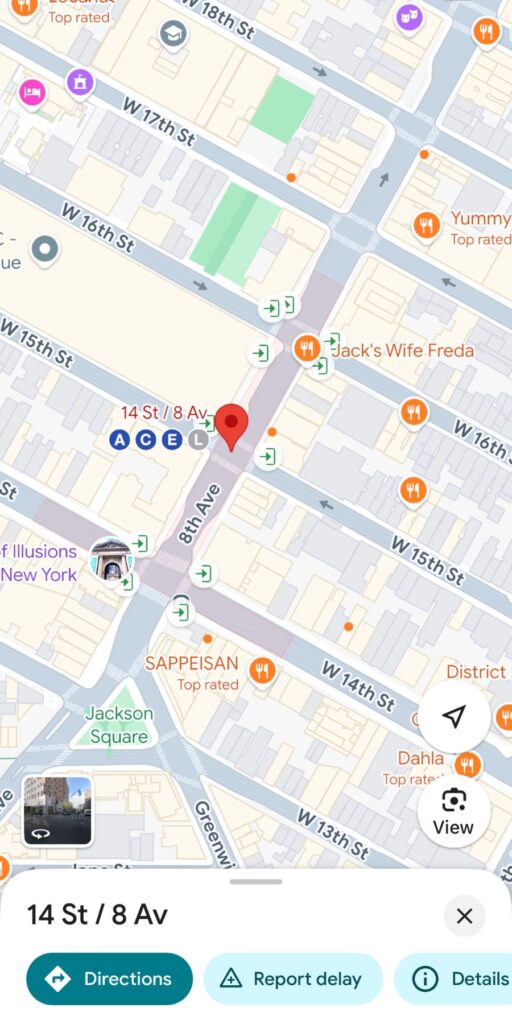
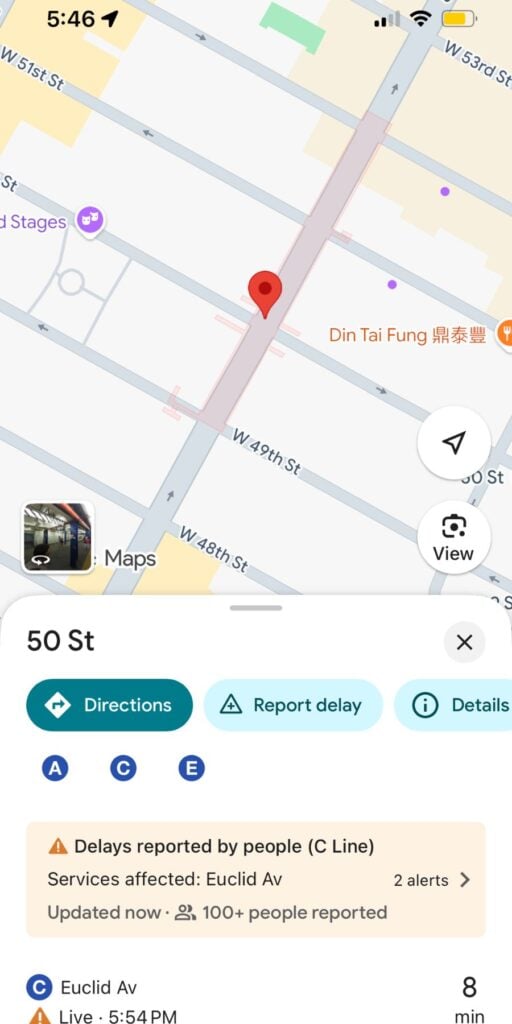
One of the biggest traps for tourists is wandering around a busy intersection trying to find the green globe of a subway entrance. Google Maps solves this perfectly. When you zoom all the way into a station on the map, you will see a faint, shaded red or grey area on the streets. That is the exact footprint of the underground station and its pedestrian tunnels. This is the actual physical grid of the underground mezzanine, ticketing areas, and pedestrian walkways before you even get down to the train tracks.
The Green Arrows
When you zoom in, you will also see precise green arrows that point exactly where the physical stairs or elevator entrances are on the sidewalk. These sit precisely on the sidewalks at the very edges of that shaded red outline. Each arrow represents a physical flight of stairs, an escalator, or an elevator leading down into those tunnels. Use these as a guide to walk directly to the entrance instead of circling the block.
Why This is Important for Travelers
See my photo below: if you are standing on West 16th Street in the pouring rain, you don’t have to walk all the way to the larger 14th Street/8 Ave station to get to the subway. You can look at Google Maps, see that the shaded station footprint actually reaches up to 16th Street, and spot green arrows right on your current corner.
It completely removes the guesswork of “Where do I actually go underground?” because it maps out the entire underground layout right onto the street grid!
Map data ©2026 Google
Map data ©2026 Google
Map data ©2026 Google
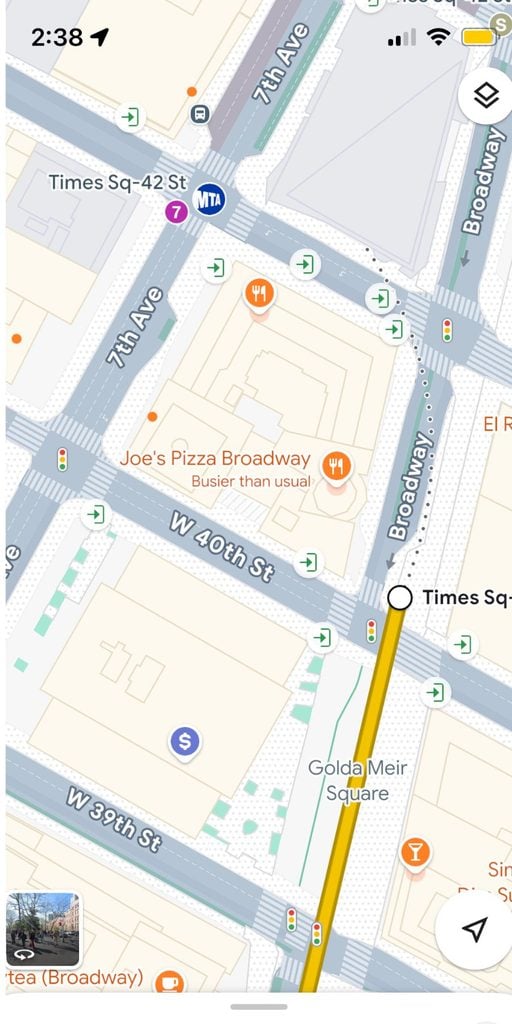
NOTE: With much larger stations, such as the Times Square–42 St station and 34th St–Penn Station station, you might not see the red shade highlighting the footprint of the station or the green arrows, but since these stations are so large, you will still easily find an entrance!
Step 4: How to Use “Live View” When You Exit the Station
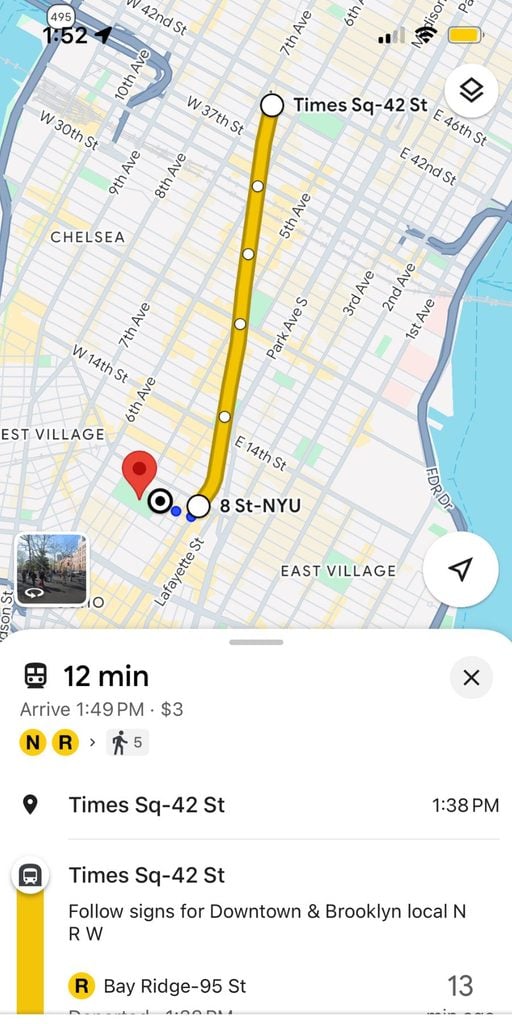
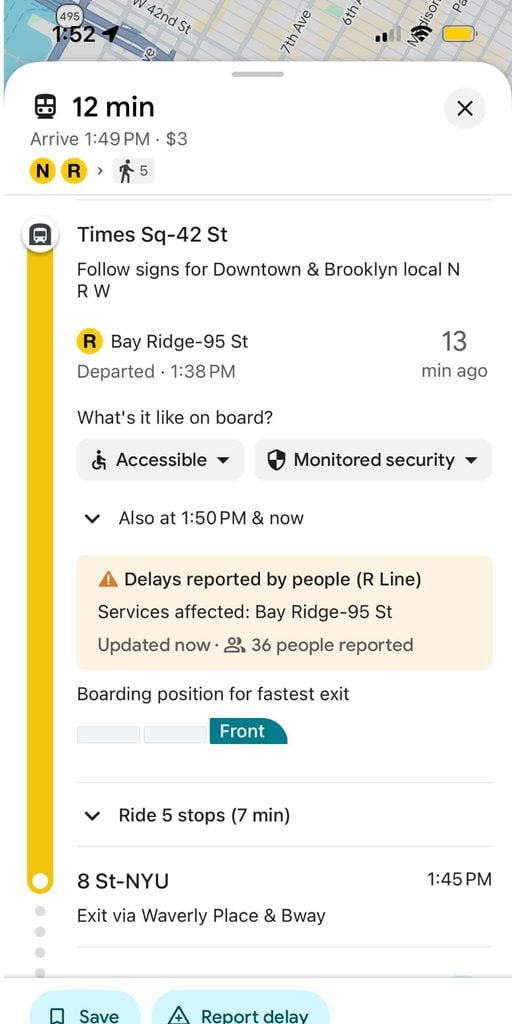
Another extremely helpful feature of using Google Maps when using the NYC subway is that it tells you which set of stairs to use when you leave a subway station, so when you get to street level, you are closest to your destination! In the photos below, Google Maps tells you to exit the station where you see signs for the stairs leading to Waverly Place and Broadway.
Furthermore, when you go up the stairs onto the street, your phone’s GPS is usually disoriented, and it’s hard to know which way is north, south, east, or west.
- The Fix: Tap the “Live View” option at the bottom of your screen. It uses your camera to scan the surrounding buildings and places a giant virtual arrow on your screen showing you exactly which direction to start walking.
Map data ©2026 Google
Map data ©2026 Google
How to Use the Transit App When Riding the NYC Subway: Your Micro-Tracking Underground Tool
While Google Maps gets you to the station door, the Transit App is the tool you rely on the second you step onto the platform and head underground.
Step 1: How to Access Official Subway Maps Completely Offline
The moment you descend into an NYC subway station, your cell service is likely going to drop or become painfully spotty.
- The Feature: Unlike other mapping apps that leave you staring at a blank, loading screen when you lose data, the Transit App stores the official, high-resolution MTA subway map directly on your phone. You can open it anytime, completely offline, to trace your route and confirm which stop is yours without needing a single bar of service.
Source: Transit app
Source: Transit app
Step 2: How to Use the “GO” Feature for Live Platform Countdowns
Nobody wants to wait on a hot subway platform, wondering if they just missed their train!
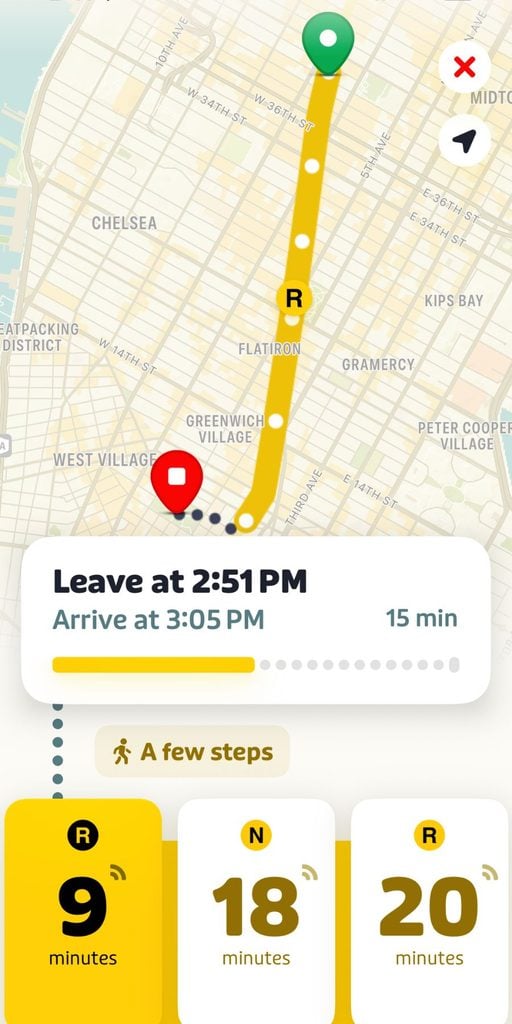
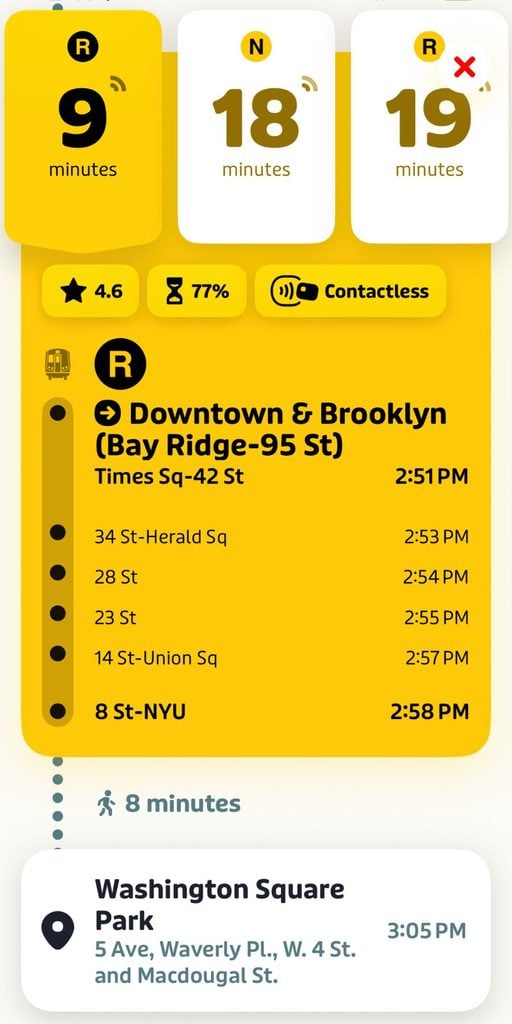
- The Feature: When you start your journey, tap the big “GO” button on your route in the app. Transit uses an ingenious crowdsourcing system. It safely and anonymously takes the real-time GPS data from other riders who are already sitting on the train you’re waiting for.
- The Value: This gives you a hyper-accurate, second-by-second countdown clock for train arrivals that is often way more precise than the station’s physical overhead screens.
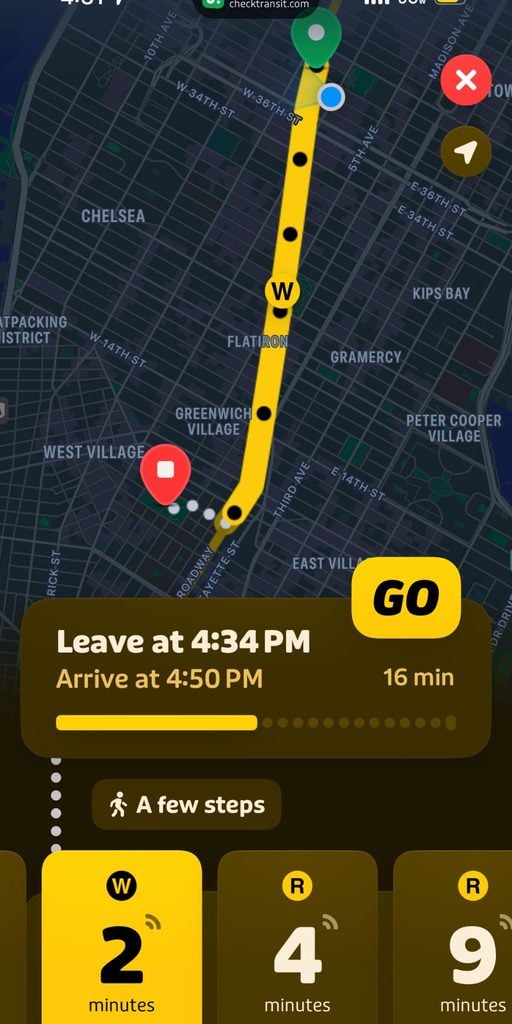
Source: Transit app
Step 3: How to Know Exactly When to Get Off (Get-Off Alerts)
It’s easy to zone out, listen to music, or get distracted in a NYC subway car and completely miss your stop.
- The Feature: Because the “GO” companion feature tracks your physical progress along the line, it will send a distinct, sharp audio chime and push notification to your phone (or Apple Watch/smartwatch) right before your destination arrives. It tells you exactly when it’s time to gather your bags and stand up, eliminating the fear of going past your stop.
Why I Choose Google Maps Over Apple Maps for Getting Around NYC
While many iPhone users default to Apple Maps, I found that for the high-stakes environment of the NYC subway, Google Maps offers two specific advantages that Apple hasn’t quite perfected yet:
- Superior “Live View” Accuracy: When you emerge from an underground station in a place like Times Square or the Financial District, the tall buildings often “confuse” your phone’s GPS. Google Maps’ Live View uses a more robust database of billions of Street View images to recognize exactly which building you are looking at. In my experience, Google’s virtual arrows are much faster at orienting me in the right direction than Apple’s “Look Around” or standard compass.
- Granular Entrance Pinpointing: Apple Maps has improved its station mapping, but Google Maps remains the king of the “Yellow Icon” strategy. Google clearly marks every single individual staircase (the black and yellow “S” icons) on the sidewalk. Apple often just drops one or two pins for a massive station, which can lead you to a “closed” entrance or have you wandering across four lanes of traffic to find the actual stairs.
Even though I’m on an iPhone and love a clean interface, I always swap to Google Maps while in NYC. Why? Because when you’re coming out of a station in Midtown, Google’s Live View is the only thing that stops me from walking the wrong way for ten minutes.
Your NYC Subway 2-App Checklist
- At Your Hotel: Open Google Maps, drop your pin, and map the macro route.
- Walking to the Station: Use Google Maps to find the exact yellow “S” sidewalk entrance.
- On the Platform: Open the Transit App, hit the green “GO” button, and watch the live countdown.
- On the Train: Put your phone in your pocket and wait for Transit’s “Get-Off Alert” chime.
FAQs: Best Apps for NYC Subway Navigation
Conclusions: Download Both and Travel Like a Local
Navigating the NYC subway doesn’t have to be a stressful rite of passage. By ditching the single-app mindset and adopting this two-app blueprint, you give yourself the ultimate travel advantage. Let Google Maps handle your high-level route planning, station entrance mapping, and street-level walking directions.
Then, let the Transit App take over the second you head underground for flawless offline maps and hyper-accurate platform countdowns. Download both apps before you head out, keep your phone ready to tap at the turnstile with OMNY, and you’ll be riding the subway like a New Yorker in no time.